Best Home Office Setup Under $500: Everything You Need Without Breaking the Bank
You don’t need to spend $2,000 to have a home office that feels professional, comfortable, and productive. The “dream desk setup” you see on YouTube? A lot of it is style over substance — expensive chairs with logo branding, monitors that cost more than a used car, and cable management trays carved from exotic timber.
Here’s the truth: the fundamentals of a great home office cost under $500, and if you choose wisely, you won’t feel the need to upgrade for years.
This guide is built for remote workers who want a real, functional setup — not a showpiece. We’ve done the research, compared the specs, and stress-tested the value so you don’t have to. Every pick on this list is available on Amazon, beginner-friendly to set up, and chosen because it punches well above its price tag.
Let’s build your perfect home office, one smart purchase at a time.
💰 Complete Budget Breakdown
| Category | Product | Estimated Cost |
|---|---|---|
| 🪑 Ergonomic Chair | Mid-back mesh office chair | ~$200 |
| ⌨️ Keyboard & Mouse Combo | Wireless keyboard + mouse bundle | ~$80 |
| 📷 Webcam | 1080p HD webcam with autofocus | ~$70 |
| 🖥️ Monitor Arm | Single monitor desk mount | ~$30 |
| 💡 Desk Lamp | LED desk lamp with USB charging | ~$35 |
| 🧘 Standing Desk Mat | Anti-fatigue comfort mat | ~$40 |
| 🔌 Cable Management | Cable organizer clips + sleeves | ~$20 |
| TOTAL | ~$475 |
You’ll come in right around $575 — leaving you a $25 buffer for a power strip or a cheap HDMI cable if needed.
🪑 The Foundation: Ergonomic Chair (~$200)
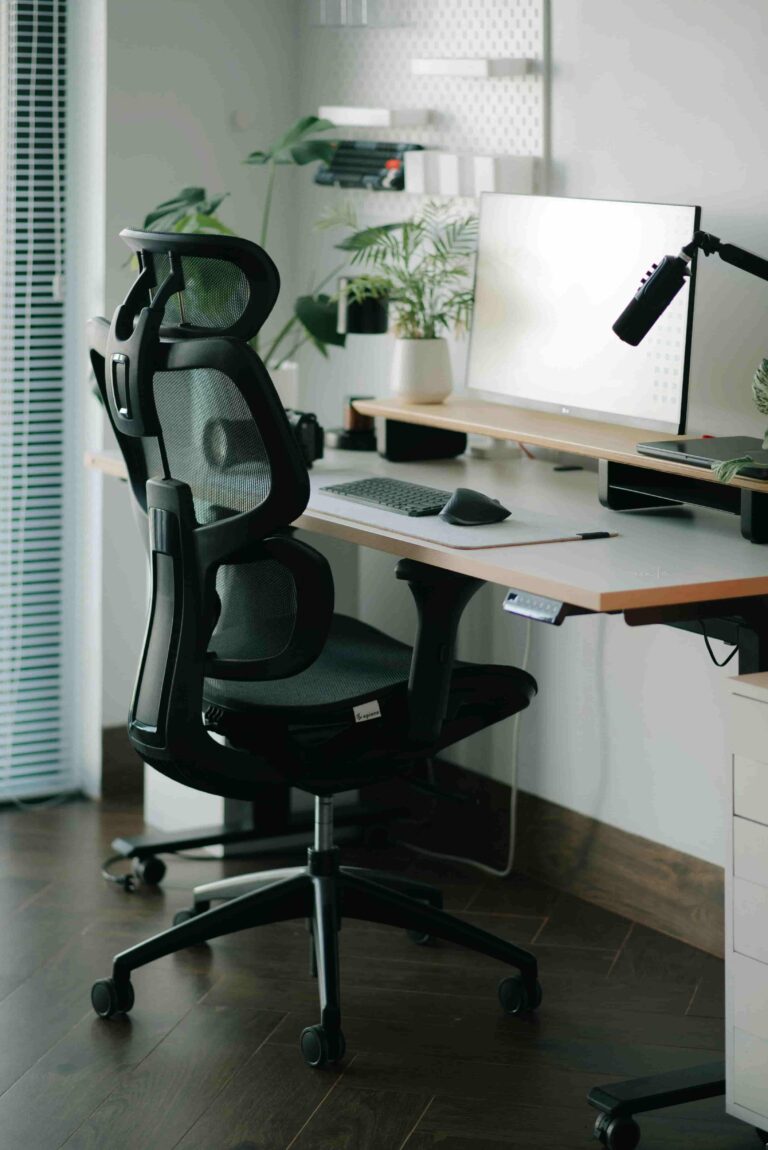
Best Pick: Mid-Back Mesh Office Chair with Lumbar Support
Your chair is the single most important investment in your home office. A bad chair doesn’t just cause discomfort — it causes back pain, neck strain, and the kind of fatigue that kills afternoon productivity. The good news? You don’t need a Herman Miller to get solid ergonomic support.
At the $150–$200 price point, mid-back mesh chairs have made enormous strides. Look for a chair with adjustable lumbar support, armrests that move up, down, and inward, and a breathable mesh back — mesh prevents the sweaty-back feeling of foam-padded chairs during long sessions.
Why this pick works: A quality mesh chair in this range offers the core ergonomic features that matter most — lumbar support and adjustable arms — without the $400+ price of branded alternatives. Assembly takes about 20 minutes with the included tool, and most ship with clear instructions. A solid starting point is the Hbada or Nouhaus Ergo3D series, both consistently rated 4+ stars with thousands of reviews.
Pro tip: When it arrives, set the seat height so your feet are flat on the floor and your knees are at roughly 90 degrees. Then adjust the lumbar so it sits naturally in the curve of your lower back.
⌨️ Keyboard & Mouse Combo (~$80)
Best Pick: Logitech MK470 Wireless Keyboard and Mouse Combo
The Logitech MK470 is one of the best-kept secrets in the budget peripherals world. It’s slim, quiet (the keys have a soft-click feel that won’t bother anyone on a call), and the wireless connection is rock solid — no lag, no dropouts.
The full-size keyboard layout means you get a number pad, which anyone doing spreadsheet work will appreciate immediately. The included mouse is compact but precise, with a battery life that lasts months rather than weeks.
Why this pick works: Logitech has built decades of reliability into this combo. You get a single USB nano-receiver for both devices, meaning you’re only using one port. It’s plug-and-play — no software required to get started. Compatible with Windows and Mac out of the box.
Amazon Prime eligible: Yes — usually arrives in 1–2 days.
📷 Webcam (~$70)
Best Pick: Logitech C920e HD Pro Webcam
If you’re on video calls for work, your webcam is your face to the world — and the built-in laptop webcam is almost never good enough. The Logitech C920s (or the similarly priced C920x) shoots in 1080p at 30fps, has a built-in dual microphone, and uses autofocus that genuinely works well in variable lighting.
The difference between a built-in webcam and a dedicated 1080p camera is striking. You go from looking like you’re calling from a tunnel to looking like you’re actually in the room. For client calls, interviews, or team standups, this matters more than you’d think.
Why this pick works: The C920 series has been the go-to recommendation for remote workers for years because it delivers consistent, professional image quality at a fair price. Privacy shutter included. Works immediately on plug-in with no drivers needed on Windows 10/11 or macOS.
Setup tip: Position it at monitor-top level, slightly above eye line, so you’re not looking up at the camera — this is the most flattering and professional angle.
🖥️ Monitor Arm (~$30)
Best Pick: Vivo Single Monitor Desk Mount
A monitor arm is one of those upgrades that feels almost unfair for the price. For $25–$35, you get your monitor off the desk entirely, freeing up valuable surface space and letting you position the screen at the exact height and distance your neck needs.
Most budget monitor arms support screens up to 27 inches and 17 lbs, which covers virtually all consumer monitors. They clamp to the back of your desk and use a simple knob system to lock your preferred position.
Why this pick works: Eliminating a monitor stand reclaims 6–8 inches of desk depth. You can push the monitor further back, pull it closer, tilt it to eliminate glare, or raise it to true eye level — none of which is possible with a fixed stand. At $30, it’s one of the highest-ROI purchases on this list.
Setup tip: Set the top of the monitor at or slightly below eye level. This keeps your neck in a neutral, forward-leaning position that dramatically reduces strain during long sessions.
💡 Desk Lamp (~$35)
Best Pick: Honeywell LED Desk Lamp with USB Charging Port
Good lighting does two things: it reduces eye strain for you, and it makes you look dramatically better on video calls. A quality desk lamp positioned to the side and slightly in front of you fills in shadows that make faces look tired and washed out on camera.
The Honeywell series offers multiple color temperatures (warm, neutral, cool daylight) and adjustable brightness, so you can match the light to the time of day or the task at hand. The bonus USB-A charging port on the base means one fewer thing competing for your wall outlet.
Why this pick works: Eye strain from poor lighting is cumulative — you don’t notice it until the headache hits at 4pm. Investing $35 in a quality LED lamp with color control pays for itself in comfort inside the first week. It also serves double duty as a key light for your webcam, giving your video a noticeably warmer, more professional look.
Setup tip: Position the lamp to your non-dominant side and angle it slightly toward your face, not straight down at the desk. This softens shadows and reduces glare on your screen.
🧘 Standing Desk Mat (~$40)
Best Pick: Gorilla Grip Anti-Fatigue Mat
If you have a standing desk — or plan to get one eventually — an anti-fatigue mat is non-negotiable. Standing on a hard floor for hours is actually worse for your body than sitting. The right mat encourages subtle micro-movements that keep circulation going and dramatically reduce foot and lower back fatigue.
Even if you’re not standing yet, a quality mat placed under your desk chair provides a defined workspace boundary that keeps your chair from rolling on hardwood floors and protects flooring from wheel scuffs.
Why this pick works: The Gorilla Grip mat at ~$35–$40 offers excellent cushioning and anti-slip backing at a fraction of the cost of premium anti-fatigue mats. It’s thick enough to make a genuine difference but not so thick it creates a tripping hazard.
Setup tip: If using for standing, go barefoot or wear minimalist shoes for maximum sensory feedback — it encourages the small weight shifts that make anti-fatigue mats work.
🔌 Cable Management (~$20)
Best Pick: J-Channel Cable Raceway Kit + Cable Clips Bundle
Cables are the silent enemy of a clean, focused workspace. A monitor arm creates the perfect opportunity to run cables out of sight — a cable raceway kit helps you finish the job. Combined with adhesive cable clips to route cords along desk legs or walls, you can go from “tech chaos” to “satisfyingly minimal” in under an hour.
Why this pick works: A $20 cable management kit accomplishes something that no amount of expensive gear can fix: it makes your workspace feel intentional. Clutter is a documented source of low-grade stress, and eliminating visual noise from cables genuinely improves focus.
Setup tip: Before routing cables, lay everything out on your desk first and figure out where each cord needs to go. Planning takes 5 minutes; doing it wrong takes 45.
🛠️ How to Arrange Your Setup: Room-by-Room Tips
Getting the components is step one. Getting them positioned right is where comfort is won or lost.
The basic ergonomic formula:
- Chair height: Feet flat, knees at ~90°, thighs parallel to the floor
- Desk surface: Elbows at 90° when typing, shoulders relaxed — not shrugged
- Monitor distance: Arms-length away, top edge at or slightly below eye level
- Webcam: Center of the camera at eye level, 2–3 feet away
- Lamp: To the side, angled gently toward your face, not your screen
Natural light tip: If you have a window, position your desk so it’s to your side — not behind you (creates glare on screen) and not in front of you (creates an overexposed silhouette on camera). Side lighting is universally flattering and productive.
Sound tip: Your keyboard and mouse combo’s soft-click design means it won’t be a problem on calls, but if you’re in a room with hard floors and bare walls, consider adding a rug or desk mat. Soft surfaces absorb echo dramatically.
⬆️ What to Upgrade First (When Budget Allows)
Once you’ve built this foundation, here’s the priority order for future upgrades — based on impact per dollar:
1. Monitor (~$150–$250) — If you’re using a laptop screen, adding even a single 24″ or 27″ 1080p external monitor is the single biggest productivity upgrade available. Your monitor arm is already waiting for it.
2. Standing Desk (~$300–$400) — A height-adjustable standing desk transforms the ergonomics of your entire setup. Your anti-fatigue mat is already in place.
3. Headset or Earbuds with Mic (~$50–$100) — Better audio quality on calls than even a good webcam mic. The Jabra Evolve or Anker PowerConf series are excellent starting points.
4. Better Webcam or Ring Light (~$50–$80) — If video quality matters for your role, stepping up to the Logitech Brio 4K or adding a dedicated ring light makes a visible difference.
🛒 Complete Shopping List
All items are available on Amazon — search the product names below or use the links on our product pages at HomeOfficePick.com. All are Prime-eligible for fast, free delivery.
| # | Item | Search Term | Est. Price |
|---|---|---|---|
| 1 | Ergonomic Chair | “Hbada mesh office chair lumbar support” | ~$200 |
| 2 | Keyboard & Mouse | “Logitech MK470 wireless combo“ | ~$80 |
| 3 | Webcam | “Logitech C920 HD Pro webcam“ | ~$70 |
| 4 | Monitor Arm | “Vivo Single Monitor Desk Mount“ | ~$30 |
| 5 | Desk Lamp | “Honeywell LED desk lamp USB charging“ | ~$35 |
| 6 | Anti-Fatigue Mat | “Gorilla Grip anti-fatigue standing mat“ | ~$40 |
| 7 | Cable Management | “J-channel cable raceway kit desk“ | ~$20 |
| TOTA | ~$475 |
Final Thoughts
A productive home office isn’t about how much you spend — it’s about making smart, intentional choices with what you have. The setup outlined here covers every category that actually matters: comfort, ergonomics, video quality, lighting, and a clean workspace that helps you focus.
Under $500, you’ll have a setup that beats the average in-office workstation, looks professional on every video call, and supports your body through long working days.
Start with the chair — it’s the foundation everything else builds on — and work your way through the list at whatever pace works for your budget. Even getting two or three of these items will make a noticeable difference.
Your future-self’s back will thank you.
Prices are approximate and subject to change. Always check current pricing on Amazon before purchasing. HomeOfficePick earns a commission on qualifying purchases made through affiliate links on this site.
© 2026 HomeOfficePick · Privacy Policy · Contact Us